The category is a Google profile field many owners pick by gut feeling. One owner types "contractor" or "home services" because it sounds right, another copies the neighbor, and the profile ends up describing something other than what the business is. Google has written rules for this, and almost all of them fit in one sentence: describe what your business is, not what it has.
This guide gathers what Google's help pages say about categories, read on October 29, 2026, turns it into steps and separates what Google says from what it does not. It is for the owner of a local business who is about to choose or change a category, and for whoever does it for a client.
What a category is for
According to Google, categories tell your customers what your business does and help the people looking for what you offer find you. Google also writes that the categories you select affect your local ranking. That is the only ranking consequence the category pages we read state in writing. How much it weighs against everything else, they do not say.
Google's example: if your primary category is "Pizza restaurant," they might show your business when someone searches for restaurants, Italian restaurants or pizza. They say it as a possibility, not a guarantee. What it shows is that a specific category can also appear in broader searches.
The category can also change what appears on the profile. Google gives these examples: restaurants can add links for orders, reservations and menus; health and beauty businesses, a booking button and their list of services; hotels can show class ratings. If a feature does not appear on your profile, the category is a place to look, although Google does not say it is the only cause.
On its local ranking tips page, Google says local results are mainly based on relevance, distance and popularity, and that there is no way to request or pay for a better spot. It lists "what kind of business you are" among the details worth keeping complete and up to date.
Primary and additional, per Google
| Primary category | Additional categories | |
|---|---|---|
| How many | One: the one in the first field | Up to 9 more |
| What for | What best describes your main business, as specific as possible: instead of "Salon," "Nail salon" | Informing about special departments or services. Not one per product or service, just a few |
| Google's example | Grocery store | Bakery and Deli, in that same store |
| If yours is not listed | Pick a more general one. You cannot create your own category | Same: only from the list Google shows |
| With several locations | All locations of a business must share it | Google says nothing specific |
One rule Google repeats on two pages: do not use a category solely as a keyword or to describe an attribute of your business. "Cheap plumber" or "night service" are examples of what is not a category. It also asks you not to use categories that belong to other nearby or related businesses, such as one that operates inside yours.
Choosing the primary, step by step
- Run Google's test. Complete the sentence "This business IS a..." Google proposes that filter: the category describes what you are, not what you have (a pool, a dessert on the menu).
- List what you do and cross out what is an attribute. "Open at night," "low prices" or "with parking" fail the test. What is left are your candidates.
- Find the most specific one that still represents your main business. Google says that if you pick a specific category, it includes the more general ones on its own: with "Golf Resort," "Resort Hotel," "Hotel" and "Golf Course" are implied. No need to add them.
- If the list does not have the exact one, pick a more general one. Google does not let you create your own.
- Put it in the first field. That is the primary.
- Add additional ones only for real departments or services. A few, from the list, never one per service. Google does not say how many "a few" is.
- Check that your website says the same thing. Google says it can also detect the category from your site and from mentions of your business around the web.
Google's own guide includes examples of what works and what does not. These three train the eye:
| Business | Correct categories | Incorrect categories |
|---|---|---|
| Super 8, a motel with a pool | Motel | Hotel, Swimming Pool |
| 24-Hour Fitness | Health Club | Gym, Swimming Pool |
| Wendy's, which also sells desserts | Fast Food Restaurant, Hamburger Restaurant | Dessert Restaurant |
Five mistakes to avoid
These five mistakes come from Google's rules. Three examples come from its guide and two are ours, labeled as such:
| Mistake | What it looks like | What Google asks |
|---|---|---|
| Using it as a keyword | "Cheap plumber" (our example) | Do not use categories solely as keywords |
| Describing what the business has | A motel adding "Swimming Pool" (Google's example) | Categories that complete "this business IS a" |
| Copying the one from a business that lives inside yours | Barnes and Noble does not add "Coffee Shop" because the cafe is Starbucks (Google's example) | Only categories that represent your business |
| One category per service | Eight categories for eight services (our example) | Few, from the list, for special departments or services |
| Two businesses on one profile | A restaurant inside a hotel, or a pharmacy inside a supermarket | One profile for each, with different names |
Seeing what competitors use
Looking at others helps you discover category names you had not thought of, not copy them. You do it with Google Maps, installing nothing:
- Search Google Maps the way a customer would, for example "plumber in Davenport FL," in a window without your account signed in, to get closer to what a customer sees.
- Open the first businesses, one by one. In the panel, under the name and the rating, there is a gray line with the type of business.
- Write it down in a three column table: business name, the category it shows and how far it is from you. Five or six rows are enough to see which names repeat and which appear only once.
- Apply the "IS a" test to each one. A category that does not describe what that business does is their mistake, not a model.
- Keep the names that do describe yours and that you had not considered. Confirm them in Google's list when you get to editing.
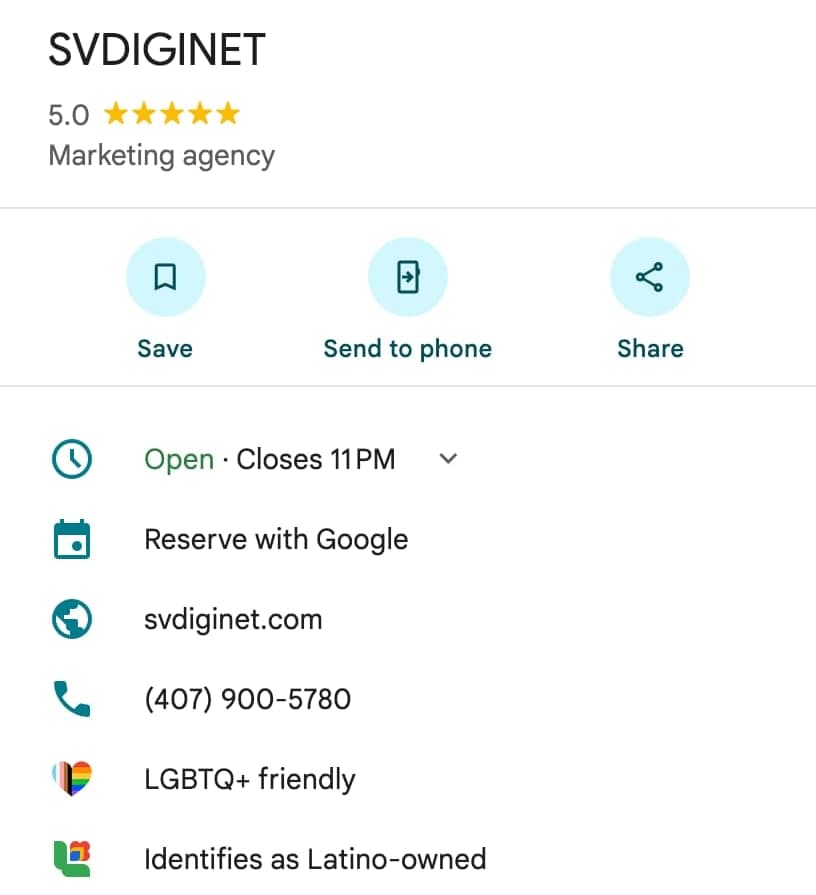
What you see is a clue, not the full list: a competitor may have additional categories that do not appear there.
A worked example
This business is made up and is here only to show the reasoning: a plumbing company in Davenport, FL that fixes leaks, installs water heaters, clears drains and takes night emergencies. The names below are ideas; before using them, confirm they appear in the list Google shows when you type the category.
| Idea | Is or has? | Decision |
|---|---|---|
| Plumber | Is | Primary |
| Water heater installation | A service, not the business | Additional only if it works as a special service and is in the list |
| Drain clearing | A service, not the business | Candidate for additional; choose between this and the previous one if "a few" is tight |
| Night emergency service | Has (an attribute) | Not a category. Say it in the description and in the services list |
| Cheap plumber | Keyword | No |
| Pool contractor | Another related business they do not run | No |
Result: primary, "Plumber"; additional, zero to two, only services with an identity of their own. The call is yours and is justified with the "is a" test, not with the urge to cover more searches.
Before you save the change
Changing a category is quick, but the edit is reviewed before it goes live. This list comes from the order we follow before touching any profile:
- Read Google's page on the topic, not a third party summary. The six we used are at the end.
- Capture the current category and the profile status, with a date. Without that you cannot compare afterwards.
- If a verification postcard code is pending, do not edit the category. Google says that if you edit the name, address or category, the code they sent will not work.
- Make one change at a time. On Google's page the path is: edit profile, then "Business category," Edit, the "Primary category" box and, for one more, "Add another category."
- After saving, check the status. Google says edits to a verified profile are reviewed, usually take up to 10 minutes and sometimes up to 30 days, and may be marked "not approved" if Google cannot confirm they are accurate.
- Be ready for a new verification. Google says that when you add or edit a category, you might be asked to verify again. It does not say in which cases.
- Write down the result and the date in the same record from step 2.
change-record.txt
PROFILE: [business name]        DATE: [today]
BEFORE:  primary [category] / additional [list] / status [verified, pending...]
CHANGE:  [what I changed and why, with the "this business IS a..." test]
AFTER:   status [pending / live / not approved] checked on [date]
RULE:    [link to the Google page that backs the change]
What Google does not say
- How much the primary weighs against the additional ones in ranking. Its page says the categories you select affect local ranking, without comparing them.
- Whether changing category raises, lowers or leaves your ranking unchanged, and over what time. We have not measured it with a clean before and after either, so we give you no number.
- How many additional categories is "a few." It only says you can add up to nine.
- Whether the Maps panel shows all of a business's categories or only one.
- Which exact changes require verifying again. It says you might be asked.
If you want help with your profile
Choosing and maintaining categories is part of the Google profile work we do at SVDIGINET. If you want us to review yours, start with the free audit: we review your visibility, your reputation and the path a customer takes to contact you, and tell you what to fix first. It is a diagnosis, not a promise of results.
Sources: Google Business Profile Help: Manage your business category, read Oct 29, 2026; Google Business Profile Help: Guidelines for representing your business on Google; Google Business Profile Help: Edit your Business Profile; Google Business Profile Help: Understand what happens to your Business Profile edits; Google Business Profile Help: Verify your business on Google; Google Business Profile Help: Tips to improve your local ranking on Google